Android
Samsung Auto Blocker: Why USB Debugging and ADB Commands May Stop Working
Your Galaxy phone charges normally, yet ADB cannot find it or USB debugging is unavailable. Samsung's Auto Blocker may be responsible, but the connection symptoms can have several different causes.
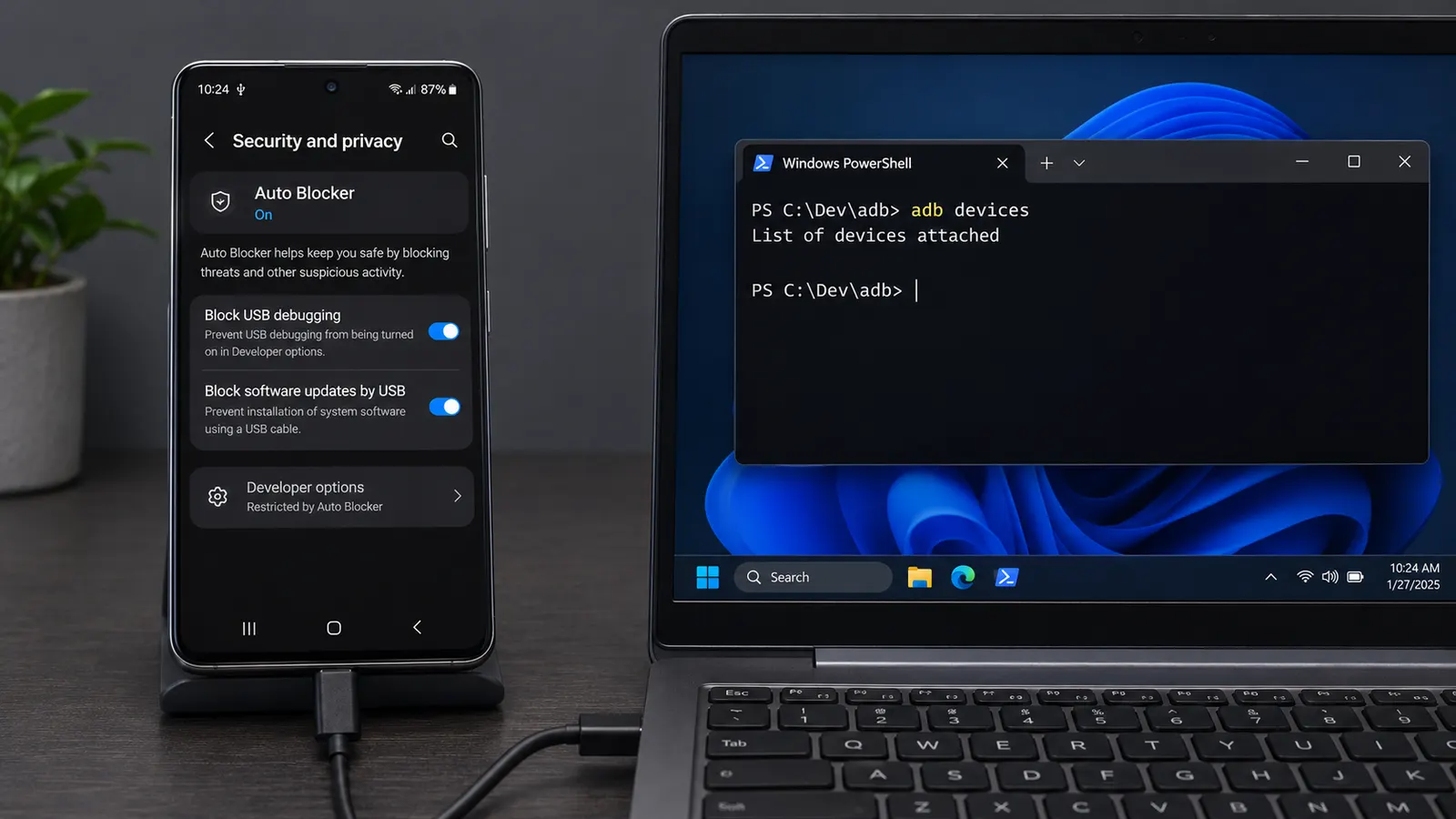
Your Samsung Galaxy is connected to a computer. The phone charges normally, Windows may even recognize it, and there seems to be nothing wrong with the USB cable.
Yet when you open a terminal and enter:
adb devicesThe result is unexpectedly empty.
List of devices attachedPerhaps it worked before a software update. Or perhaps you have just enabled Developer options and discovered that USB debugging cannot be switched on.
The first suspicion would probably fall on the cable or the computer’s USB drivers. After all, ADB relies on a connection between the phone and the development machine.
But what if the connection itself is working, and the phone is deliberately refusing certain commands?
On Samsung Galaxy devices running newer versions of One UI, this is a possibility worth investigating. Samsung includes a security feature called Auto Blocker, which can restrict commands received through USB.
It is intended to protect the device from potentially harmful connections. Unfortunately, some of those restrictions overlap with the capabilities developers need when working with ADB.
And that leads to a confusing situation: a perfectly functional USB connection may still be unusable for debugging.
A connection does not necessarily mean permission
To understand what is happening, consider the difference between connecting a phone to a computer and allowing that computer to issue debugging commands.
When you attach a USB cable, several things may happen independently.
The phone can receive power, Windows can detect a connected device, and Android may allow file transfers through MTP.
ADB operates through a different interface.
It is designed to communicate with Android’s debugging service, allowing development tools to perform operations such as installing applications, reading diagnostic logs, or executing shell commands.
For example:
adb shell getprop ro.product.modelOn a correctly connected and authorized device, this command retrieves its reported model.
But a computer should not receive debugging access merely because someone plugged in a cable.
Android normally requires USB debugging to be enabled in Developer options. The user must also authorize the computer through a confirmation dialog.
Samsung adds another layer to this arrangement.
Even when the phone is physically connected, Auto Blocker can prevent the use of USB debugging.
So the fact that your phone charges or appears in File Explorer does not establish that ADB should be working.
The two systems serve different purposes.
What Samsung Auto Blocker actually restricts
Samsung introduced Auto Blocker with One UI 6, based on Android 14.
Its purpose is to reduce certain security risks without requiring users to configure several protections individually.
When enabled, Auto Blocker can prevent installation of applications from unauthorized sources, block potentially malicious content in messaging applications, restrict commands received over USB, and prevent unauthorized system software installation.
The USB restriction is the relevant part here.
Samsung’s documentation explicitly describes blocking commands from connected equipment, including computers and chargers. Its support material also states that USB debugging is disabled when Auto Blocker is active.
This explains why attempting to enable USB debugging may produce a message saying that the feature is restricted by Auto Blocker.
It also explains why an ADB connection can stop working after a change in the device’s security configuration, even though the computer and cable have not changed.
But there is a detail that should not be overlooked.
Auto Blocker is not exclusively a USB protection feature.
Disabling it affects other security measures as well. Someone who only wants to run a development command may therefore be disabling more protection than they originally intended.
We will return to that later.
Check the phone before modifying the computer
Suppose ADB cannot find your Galaxy device.
Before downloading drivers or reinstalling Android Studio, take a look at the phone itself.
On supported Samsung devices, Auto Blocker can generally be found under:
Settings → Security and privacy → Auto Blocker
The precise menu names may vary depending on the phone model, region, and One UI version.
Check whether the feature is enabled.
If it is, that establishes a possible cause, but not necessarily the only one.
Now open Developer options.
If the menu is not visible, it can usually be enabled by opening:
Settings → About phone → Software information
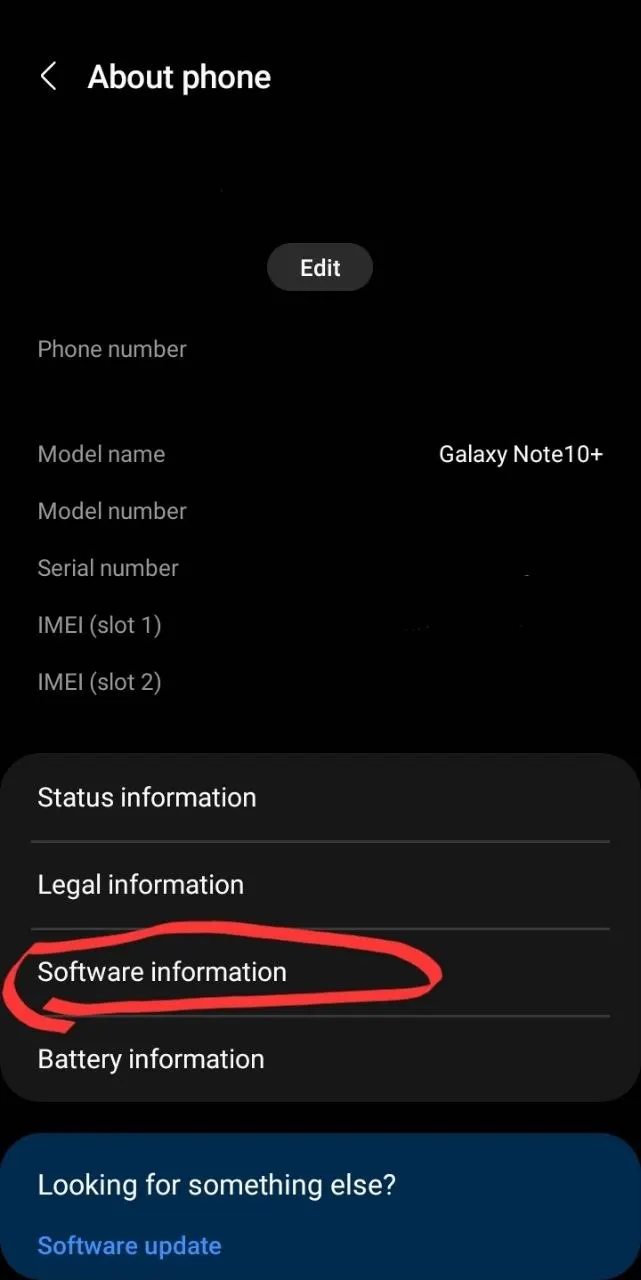
Then tap Build number seven times and complete any requested authentication.
Return to Settings and open Developer options.
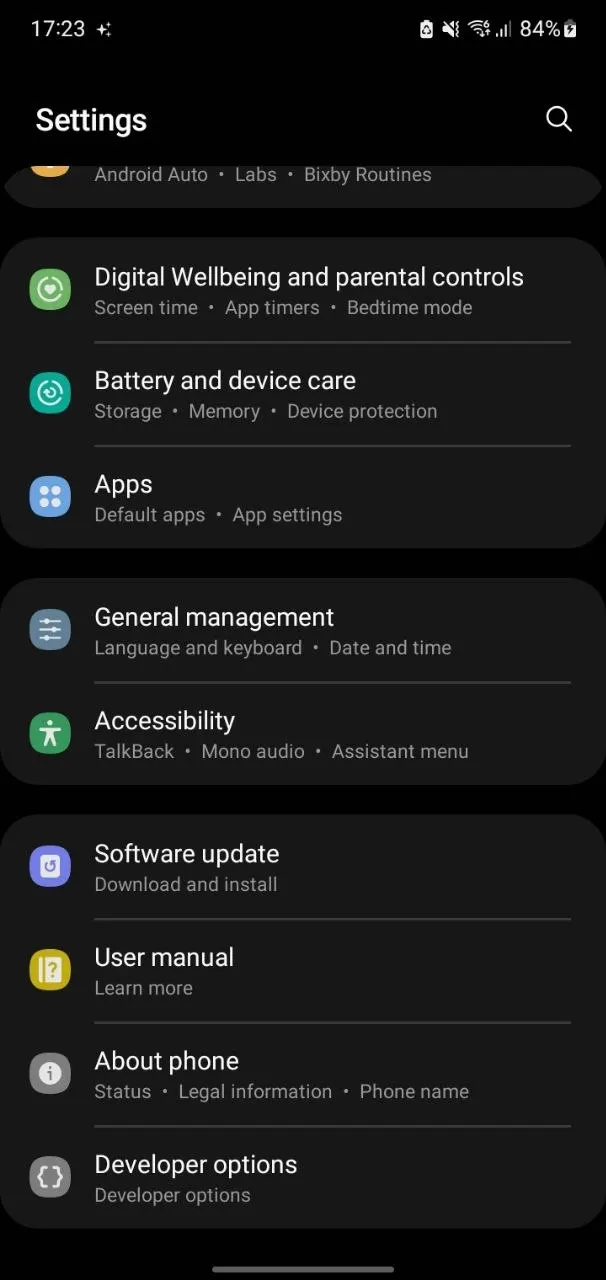
Find USB debugging.
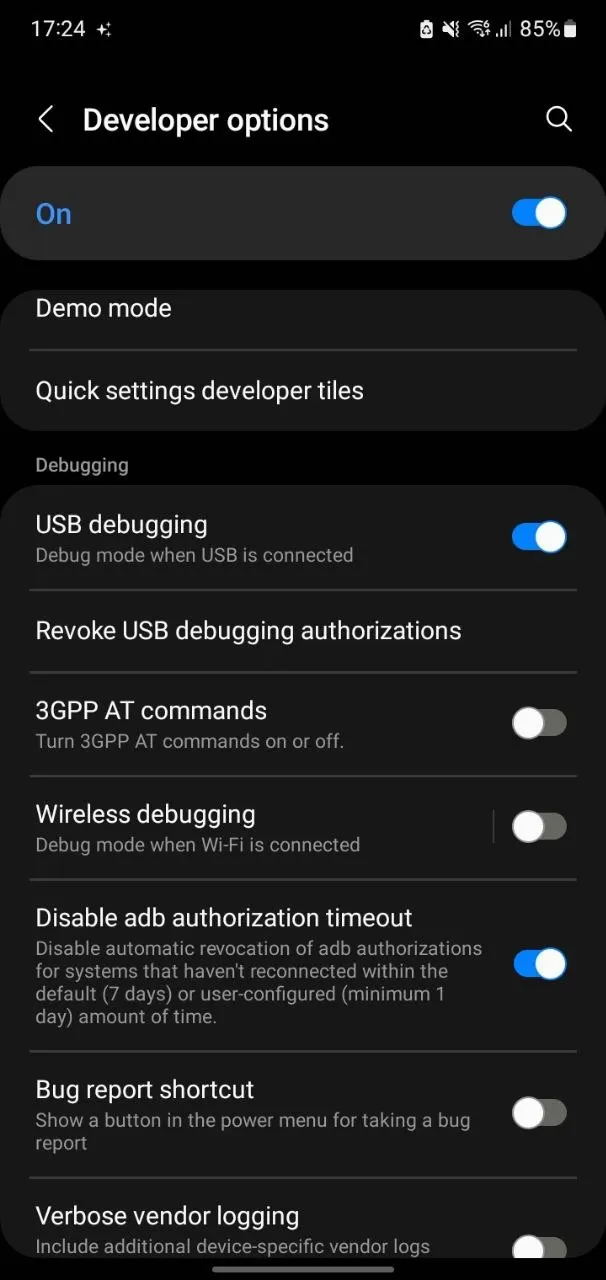
If the switch is unavailable or Android explicitly indicates that Auto Blocker is restricting it, the situation becomes much clearer.
The phone is reporting a security restriction rather than leaving us to infer one from an empty ADB device list.
However, if USB debugging is available and enabled, do not immediately assume that Auto Blocker is the reason ADB fails.
We still need to examine how the computer sees the device.
What about Maximum restrictions?
Starting with One UI 6.1.1, Samsung added an optional mode called Maximum restrictions.
This mode provides additional security controls and can affect certain applications, accessories, and connections.
It is separate from the standard Auto Blocker configuration.
That distinction matters because the ordinary Auto Blocker feature already includes USB command protection.
You do not need to have Maximum restrictions enabled for Auto Blocker to interfere with USB debugging.
Turning off Maximum restrictions alone should therefore not be treated as a guaranteed solution to an ADB problem.
Check the main Auto Blocker setting and the USB debugging switch rather than assuming that the most restrictive-looking option is responsible.
What adb devices can tell us
Now return to the computer.
First, confirm that ADB itself is available.
Open PowerShell, Command Prompt, or another terminal and enter:
adb versionIf the command is not recognized, the problem is occurring before any connection to the phone has been attempted.
The Android SDK Platform Tools package contains ADB. You can install it through Android Studio’s SDK Manager or obtain the standalone package from Google’s Android developer website.
Once ADB works, run:
adb devices -lThis lists devices known to the ADB server, along with additional information when available.
The result provides a useful indication of where the connection process has reached.
Nothing appears in the list
List of devices attachedADB has not listed an available device.
Several explanations remain possible.
USB debugging might be disabled. Auto Blocker might be preventing debugging access. The cable might support charging but not data, or the operating system might lack the appropriate USB driver.
The empty list does not identify which explanation is correct.
This is where the phone’s settings become important.
If USB debugging is explicitly restricted by Auto Blocker, investigate that restriction first.
If debugging is enabled and Auto Blocker is not interfering, examine the USB connection and driver.
The device is listed as unauthorized
List of devices attached
R58M123ABCD    unauthorized
This is a different situation.
ADB has detected a device, but the computer has not completed the required debugging authorization.
Normally, Android displays a prompt asking whether to allow USB debugging from the connected computer.
Unlock the phone and look for that dialog.
If it appears, verify that you recognize the computer before approving it.
The authorization uses an RSA key to identify the development machine. This prevents an arbitrary computer from immediately receiving debugging access whenever the device is connected.
If the prompt does not appear, reconnecting the cable or restarting the ADB server may help initiate another connection attempt.
On a personally managed device, Developer options also includes a way to revoke previously granted USB debugging authorizations. This can be useful when resolving a stale authorization, although it means trusted computers will need approval again.
An unauthorized status should not automatically be interpreted as an Auto Blocker failure.
It tells us that the connection has reached a different stage.
The device is offline
List of devices attached
R58M123ABCD    offline
Here, ADB knows about the device, but it cannot currently communicate with it normally.
A stale debugging connection or an ADB server problem may be involved.
One reasonable diagnostic step is to restart the server:
adb kill-server
adb start-server
adb devices -l
This restarts ADB’s host-side server and asks it to discover connected devices again.
It does not disable Samsung security protections or grant debugging permission.
If the device remains offline, check the phone’s debugging state, connection, and authorization.
The device is ready
List of devices attached
R58M123ABCD    device
A status of device indicates that ADB recognizes the device as connected and available for communication.
You can then verify the connection using a harmless read-only command:
adb shell getprop ro.product.modelThe serial number shown in these examples is illustrative. Your device will have its own identifier.
Distinguishing a driver problem from Auto Blocker
An empty ADB list may look the same whether the cause is a Windows driver or a restriction on the phone.
So how do we tell them apart?
Begin with what can be observed without changing the security settings.
If the phone explicitly says that USB debugging is blocked by Auto Blocker, there is little reason to begin by reinstalling drivers. Windows cannot establish a normal USB debugging session while the required debugging access is disabled by the device.
But suppose USB debugging is enabled and the phone reports no such restriction.
In that case, the computer deserves closer attention.
On Windows, open Device Manager while the Galaxy device is connected.
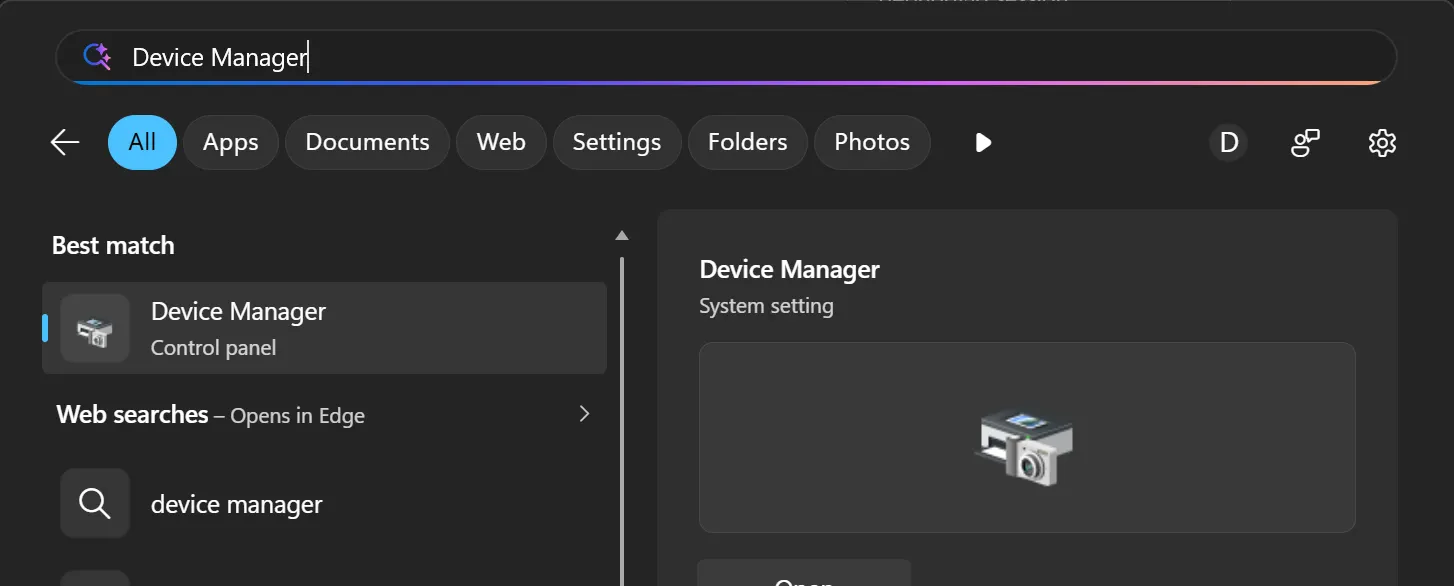
Look for the phone or its relevant USB interfaces.
If Windows displays an unknown device or a driver error, the host-side USB configuration may be responsible.
Samsung distributes an official Android USB driver for developers using Windows.
You can obtain it from:
Samsung Android USB Driver — Samsung Developer
Install the driver only when appropriate for your setup, then reconnect the phone and check ADB again.
There is no need to repeatedly reinstall drivers if Windows already recognizes the debugging interface correctly and the phone itself reports a security restriction.
The cable also deserves consideration.
Some USB cables are intended primarily for charging, while others support data transfer.
A phone receiving power establishes that electrical charging is working. It does not establish that USB data communication is functioning.
If possible, test another known data-capable cable and a different USB port.
Google’s Android Studio documentation recommends checking cables and device setup when troubleshooting failed ADB connections.
One more distinction: selecting File transfer on the phone is not equivalent to enabling USB debugging.
MTP file transfers and ADB debugging are separate capabilities. ADB does not universally require the phone to remain in File transfer mode.
Changing the USB mode may help investigate a general connection problem, but it cannot override a security restriction that disables debugging.
Temporarily disabling Auto Blocker for a trusted debugging session
If Auto Blocker is confirmed to be preventing USB debugging, a legitimate development task may require temporarily changing the setting.
On a personally managed Galaxy device, the general procedure is:
- Open Settings → Security and privacy → Auto Blocker.
- Turn off Auto Blocker, acknowledging any security warning.
- Open Developer options and enable USB debugging.
- Connect the phone to a computer you trust.
- Approve the Android USB debugging authorization prompt if it appears.
- Run
adb devices -lto check the connection.
Once the debugging session is finished, disable USB debugging again and restore Auto Blocker.
The exact behavior when restoring Auto Blocker can depend on One UI version and device configuration. Do not assume that an existing ADB session will remain available after the protection is restored.
There is also no reason to leave USB debugging enabled permanently if it is only needed occasionally.
If the device belongs to an employer, school, or another organization, its security configuration may be enforced by management policies. In that case, do not attempt to bypass the restriction; use the approved development process or contact the administrator.
And if Auto Blocker cannot be changed, determine why before trying other methods.
A missing setting, an enforced policy, and a malfunctioning toggle are not the same problem.
Why disabling Auto Blocker should not be the first reaction
There is a tendency to treat security features as obstacles when they interfere with development.
A command fails, a setting blocks it, and the quickest apparent solution is to disable the setting.
But Auto Blocker exists because a USB connection is not necessarily trustworthy.
A charging station, an unfamiliar computer, or another connected device should not automatically receive permission to issue sensitive commands.
ADB itself is a legitimate development tool, but the access it provides can be powerful.
Depending on authorization and device configuration, it can install applications, retrieve diagnostic information, and interact with the Android shell.
That is useful when the computer is yours and the task is intentional. The same degree of access is undesirable when the connected device is not trusted.
There is another consequence of disabling Auto Blocker: its other protections may also be suspended.
These include restrictions on installing applications from unauthorized sources and certain protections against potentially malicious content or unofficial software modifications.
Someone who disables the entire feature to run one ADB command may forget that those unrelated protections have also been affected.
For occasional development, temporarily disabling Auto Blocker and restoring it afterward is generally a more cautious approach than leaving it off indefinitely.
And if no debugging access is needed, there is usually no reason to change the setting at all.
A similar USB problem that is not necessarily Auto Blocker
Samsung introduced other USB-related protections in later One UI versions.
For example, One UI 7 includes behavior that can restrict connections to USB accessories after the device has remained locked for an extended period.
Samsung documents a setting called Block USB connections while locked.
This protection concerns USB connections while the device is locked. It should not automatically be confused with Auto Blocker’s general restriction on USB commands.
Suppose a USB accessory stops functioning after the phone has been locked for some time, but works again after unlocking and reconnecting it.
That behavior points toward a different security mechanism from a USB debugging switch that is explicitly restricted by Auto Blocker.
The distinction becomes useful when troubleshooting newer Galaxy devices.
Several security features may affect USB behavior, but they do not necessarily operate at the same stage of the connection.
Rather than disabling every USB-related protection, examine the particular symptom and the corresponding setting.
Can wireless debugging avoid the problem?
Android 11 and later support ADB debugging over Wi-Fi.
On supported devices, wireless debugging allows a development computer and an Android device to communicate without maintaining a USB cable connection.
Google documents pairing through a QR code or pairing code, depending on the development environment.
This can be useful when the problem is specifically related to a USB cable or Windows USB driver.
However, it should not be treated as a guaranteed workaround for Samsung Auto Blocker.
The availability of wireless debugging can depend on device configuration, software version, and other security restrictions.
If Developer options or debugging features are restricted, switching to Wi-Fi does not necessarily make those restrictions disappear.
Wireless debugging also requires its own authorization process and an appropriate network environment.
It is a different connection method, not permission to ignore the phone’s security configuration.
Before replacing the cable again
Consider the original situation.
The Galaxy device charges normally. Windows recognizes that something is connected. ADB, however, reports no available devices.
At first, the cable seems suspicious.
That explanation is reasonable, particularly if the connection has never worked before. But it becomes less convincing when the phone explicitly reports that USB debugging is restricted by Auto Blocker.
Now the problem has a different shape.
The computer may be working correctly, and the cable may support data. What is missing is the device’s permission to provide a debugging connection.
Conversely, if Auto Blocker is disabled, USB debugging is enabled, and the computer still cannot detect the device, repeatedly changing the Samsung security settings is unlikely to help.
At that point, inspecting Windows Device Manager, the USB cable, and the Android SDK Platform Tools installation makes more sense.
The exact failure matters.
An empty adb devices list, an unauthorized status, an offline device, and a disabled USB debugging switch may all prevent development work, but they tell us different things about where the connection has failed.
Finding that difference is more useful than applying every suggested fix.
And once the issue is resolved, there is no need to sacrifice the phone’s normal protection for convenience. A trusted debugging session can be temporary, while Auto Blocker continues protecting the device during everyday use.