Programming
React Inputs Lose Focus After Every Keystroke: Why It Happens
An input that loses focus after every character may look like a state management problem. Often React is replacing the element entirely, and the reason is hidden somewhere above the input.
You click an input field, type a letter, and suddenly the cursor disappears. The text remains, but the field is no longer focused.
Click it again, type another letter, and the same thing happens.
At first, the problem seems to be somewhere in the input handler. Perhaps onChange is updating state incorrectly, or the entire form re-renders whenever a character is entered.
Both are reasonable suspicions. After all, the problem occurs immediately after a state update.
But there is something strange about that explanation.
React applications update state constantly. Controlled inputs are expected to re-render whenever their values change. If re-rendering alone caused focus to disappear, ordinary React forms would be almost impossible to use.
So why does one input work normally while another loses focus after every character?
In many cases, the answer has little to do with the input handler itself. The problem is that React no longer considers the input to be the same element it rendered a moment earlier.
The difference between re-rendering and replacing an input
Consider a small React component:
import { useState } from "react";

export default function SearchBox() {
  const [query, setQuery] = useState("");

  return (
    <input
      value={query}
      onChange={(event) => setQuery(event.target.value)}
      placeholder="Search..."
    />
  );
}
Each time a character is entered, setQuery updates the component’s state.
React renders the component again, calculates the updated UI, and commits any necessary changes to the DOM.
The input remains focused.
Nothing unusual happens because React can preserve the existing DOM element and update its value.
Now imagine a different situation.
Instead of updating that input, React removes it and creates another one in its place.
Visually, the difference might be impossible to notice. The replacement has the same placeholder, the same value, and the same CSS classes.
To the browser, however, these are two different elements.
Focus belonged to the original element. When that element is removed, the newly created input does not automatically inherit its focus.
This explains the familiar symptom: the character appears, the UI updates, and the cursor disappears.
The question is no longer why React re-rendered the component. We already know that state updates can trigger rendering.
The more useful question is: why did React replace the element instead of preserving it?
A key that changes with the input value
One possible cause is a changing key.
React uses keys to identify elements within their parent. They are particularly useful for lists, where items may be inserted, removed, or reordered.
But keys also influence whether React preserves or recreates a component.
Consider this example:
import { useState } from "react";

export default function SearchBox() {
  const [query, setQuery] = useState("");

  return (
    <input
      key={query}
      value={query}
      onChange={(event) => setQuery(event.target.value)}
      placeholder="Search..."
    />
  );
}
At first glance, everything seems reasonable.
The input is controlled, its value comes from state, and onChange updates that state synchronously.
Yet the problem is hidden in one line:
key={query}Suppose the field is initially empty.
Its key is an empty string.
After the first character, the state becomes "a". React now receives an input with a different key.
From React’s perspective, the previous element and the new element have different identities.
The original is removed, and another is created.
Enter another character and the key changes again, this time from "a" to "ab".
Another replacement.
The input may continue displaying the correct value because that value is stored in the parent component’s state. But the DOM element that previously held focus no longer exists.
The solution is simple:
<input
  value={query}
  onChange={(event) => setQuery(event.target.value)}
  placeholder="Search..."
/>
There is no need for a key here.
A key should represent a stable identity, not a value that changes whenever the user types.
The same issue can appear with other unstable keys:
<input key={Math.random()} />Or:
<input key={crypto.randomUUID()} />If these expressions are evaluated during every render, React receives a new key each time.
Generating a unique identifier does not help if the identifier itself changes continuously.
An identifier should remain stable for as long as the item represents the same logical entity.
The key might belong to a parent
Finding no key on the input does not mean the problem is unrelated to keys.
Consider:
function ProfileForm() {
  const [name, setName] = useState("");

  return (
    <div key={name}>
      <input
        value={name}
        onChange={(event) => setName(event.target.value)}
      />
    </div>
  );
}
The input has no key.
However, its parent does.
Every time name changes, React replaces the surrounding <div>. The input is part of that subtree, so it is recreated as well.
Removing the unstable key from the parent fixes the problem:
return (
  <div>
    <input
      value={name}
      onChange={(event) => setName(event.target.value)}
    />
  </div>
);
This is why looking only at the input component can be misleading.
The actual cause might be several levels above it.
For example, a form could be rendered inside a panel whose key is derived from the entire form state:
<FormPanel key={JSON.stringify(formData)} />Whenever any field changes, the panel’s identity changes. If the inputs live inside that panel, they can all be remounted.
The developer may spend time examining individual fields while the problem originates in the component wrapping the entire form.
A component defined inside another component
There is another cause that can be even harder to notice, particularly because the code looks perfectly ordinary.
Imagine that you want to keep the form organized, so you extract its input into a smaller component.
You might write:
import { useState } from "react";

export default function ProfileForm() {
  const [name, setName] = useState("");

  function NameField() {
    return (
      <input
        value={name}
        onChange={(event) => setName(event.target.value)}
        placeholder="Your name"
      />
    );
  }

  return <NameField />;
}
No suspicious keys. No asynchronous updates.
And still, the input can lose focus after every character.
Why?
Look at where NameField is declared.
It is defined inside ProfileForm.
Whenever ProfileForm renders, JavaScript creates a new NameField function object.
This matters because React uses component types when deciding whether an existing component can be preserved.
The newly created function is not the same function object as the previous one.
React therefore sees a different component type at that position and replaces the old component with the new one.
The input inside it is removed and recreated.
There is a subtle distinction here.
Calling a function inside another function is perfectly normal JavaScript. What causes the React problem is using that newly created function as a component type.
The fix is to move the component definition outside the parent.
import { useState } from "react";

function NameField({ value, onChange }) {
  return (
    <input
      value={value}
      onChange={onChange}
      placeholder="Your name"
    />
  );
}

export default function ProfileForm() {
  const [name, setName] = useState("");

  return (
    <NameField
      value={name}
      onChange={(event) => setName(event.target.value)}
    />
  );
}
Now NameField is defined once at module scope.
When ProfileForm re-renders, the component type remains the same.
React can preserve the existing component and update its props.
Notice that the onChange callback is still written inline.
That is not a problem by itself.
A new callback function may be created during rendering, but changing an event-handler prop does not ordinarily change the identity of the component receiving it.
Confusing these two situations can lead to unnecessary attempts to wrap every callback in useCallback.
The problem was not the callback. It was the component definition.
The same principle applies to components created dynamically through factories or styling utilities. If a new component type is constructed during every render and then used in JSX, React may treat it as a replacement.
How to find out whether the input is actually being remounted
We now have two possible causes: an unstable key and an unstable component type.
But before modifying a larger application, it would be useful to confirm whether remounting is happening at all.
Otherwise, we might be trying to fix the wrong problem.
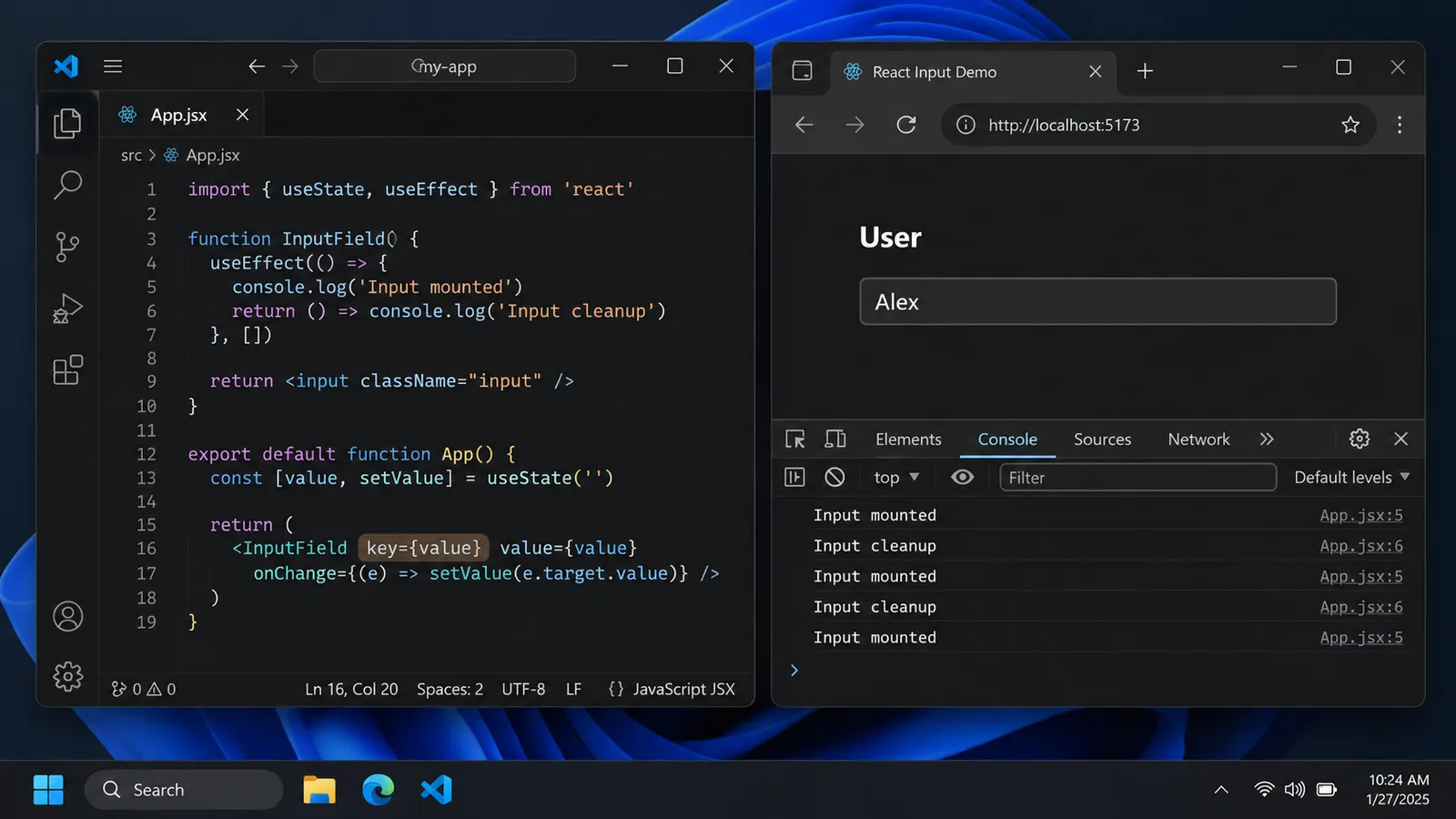
One option is to add a small diagnostic component.
import { useEffect } from "react";

function DebugInput({ value, onChange }) {
  useEffect(() => {
    console.log("Input mounted");

    return () => {
      console.log("Input cleanup");
    };
  }, []);

  return (
    <input
      value={value}
      onChange={onChange}
    />
  );
}
Use it in place of the problematic input:
<DebugInput
  value={name}
  onChange={(event) => setName(event.target.value)}
/>
Observe the console while entering text.
If the component remains mounted during state updates, its effect should not repeatedly clean up and initialize because of those updates alone.
If the component is being replaced, you may see cleanup and setup activity corresponding to the replacements.
There is one complication: React Strict Mode.
In development, Strict Mode can perform an additional effect setup-and-cleanup cycle to help detect problems.
Seeing cleanup in the console during initial mounting does not necessarily mean the component was permanently removed from the UI.
Also, an effect can run its cleanup when its dependencies change, even without unmounting. The empty dependency array in this diagnostic example is intentional.
What interests us is whether cleanup and setup repeatedly correspond to typing after the initial development-only checks.
If the result remains unclear, temporarily test without Strict Mode in a local diagnostic environment, or inspect the component using React DevTools.
Do not remove Strict Mode from a project as a permanent solution to a focus problem.
It may make certain development behaviors less visible, but it does not repair an unstable component identity.
Check the DOM element itself
There is another useful method that does not rely on React component logs.
Open the browser’s Developer Tools and inspect the input element.
Select the actual <input> node in the Elements panel.
In Chromium-based DevTools, the selected element is commonly available as $0 in the Console.
Store a reference:
const originalInput = $0;Now type a character into the field.
After the focus disappears, check:
originalInput.isConnectedIf it returns false, the original input is no longer connected to the document.
That is strong evidence that the DOM element was removed.
If the input is still connected, then the focus loss may have another cause.
For example, another part of the application might be calling .focus() on a different element, or the browser might be responding to an interaction elsewhere.
You can also inspect the currently focused element:
document.activeElementThis makes it possible to distinguish an input that was replaced from one that remains in the DOM but lost focus for another reason.
A small warning: selecting an element in DevTools can itself change focus. Use the Console for inspection, then return to the page before reproducing the problem.
The field loses focus, or the caret merely moves?
These symptoms are often described using the same words, even though they involve different behavior.
Suppose you enter a character in the middle of a string.
The input remains focused, but the text cursor jumps to the end.
That is not necessarily a remount.
It may instead be caused by how the controlled input’s value is updated.
Consider:
function UsernameField() {
  const [username, setUsername] = useState("");

  return (
    <input
      value={username}
      onChange={(event) => {
        setUsername(event.target.value.toUpperCase());
      }}
    />
  );
}
Here the handler changes the text while the user is entering it.
Rather than storing the exact value reported by the input, it immediately transforms it.
This can interfere with the browser’s expected caret position.
Asynchronous updates can create similar problems:
onChange={(event) => {
  const nextValue = event.target.value;

  setTimeout(() => {
    setUsername(nextValue);
  }, 100);
}}
React’s documentation recommends synchronously updating controlled text inputs with the current event.target.value.
If validation or transformation is required, it is often better to keep the raw input value separate from the processed representation.
For example:
function UsernameField() {
  const [username, setUsername] = useState("");

  const normalizedUsername = username.trim().toLowerCase();

  return (
    <>
      <input
        value={username}
        onChange={(event) => setUsername(event.target.value)}
      />

      <p>Normalized: {normalizedUsername}</p>
    </>
  );
}
Now the input follows what the user types, while the normalized value is available separately.
The difference is worth examining before attempting to solve the problem with unstable keys, manual focus restoration, or unusual event handlers.
If the caret jumps but the field stays active, investigate value updates and selection handling.
If the field becomes inactive and another click is required to continue typing, investigate remounting and focus management.
Why calling focus() after every update is not a proper fix
Once the input loses focus, an immediate temptation is to force it back.
Something like:
const inputRef = useRef(null);

useEffect(() => {
  inputRef.current?.focus();
});
This may make the problem appear less severe.
But the effect runs after every committed render, attempting to focus the element again and again.
If the input is being recreated, the underlying problem still exists.
The browser may repeatedly lose and regain focus. Text selection can behave unexpectedly, and other elements may become difficult to interact with because the input keeps reclaiming focus.
Imagine clicking a button beside the field.
If that click updates the form, the effect may immediately return focus to the input, even though the user deliberately selected another control.
Manual focus management has legitimate uses: opening a dialog, moving to the first invalid field, or focusing a search box when a page first appears.
But repeatedly applying .focus() to conceal an accidental remount makes the application harder to reason about.
It is usually better to preserve the original input than to recreate it and continuously restore focus.
What if the input belongs to a list?
Dynamic forms introduce another variation.
Suppose the interface allows users to add multiple email addresses.
Each entry has its own input.
A simplified implementation might look like this:
{emails.map((email) => (
  <input
    key={email.value}
    value={email.value}
    onChange={(event) => updateEmail(email.id, event.target.value)}
  />
))}
The key uses the email address itself.
This can look reasonable because every entry is expected to have a different value.
But during editing, the email address changes.
After typing another character, the input receives a different key and may be remounted.
There is also another problem: two entries can have identical or empty email values, resulting in duplicate keys.
Instead, use a stable identifier belonging to the entry.
{emails.map((email) => (
  <input
    key={email.id}
    value={email.value}
    onChange={(event) => updateEmail(email.id, event.target.value)}
  />
))}
The identifier should be assigned when the entry is created, not generated during every render.
For example, a newly added entry could receive an ID from crypto.randomUUID() at creation time.
As long as the entry represents the same logical item, its key remains unchanged.
Using an array index is another common approach, but it can cause identity problems when entries are inserted, deleted, or reordered.
If the first item is removed, the item previously at index one may now occupy index zero. React can then associate an existing component with the wrong logical entry.
Stable record IDs avoid this confusion.
The important question is what identifies the item, not what its current position or editable value happens to be.
When the problem comes from a component library
In a real application, the input may not be rendered directly.
It might be wrapped in a field component, validation component, layout component, or a styling abstraction.
The code you see could be as simple as:
<CustomTextField
  value={name}
  onChange={handleNameChange}
/>
The actual <input> may be several components deeper.
This makes the problem more difficult to locate, particularly when the wrapper changes its structure based on validation state.
A useful approach is to temporarily replace the custom component with a native input.
<input
  value={name}
  onChange={handleNameChange}
/>
If the native input works normally, that narrows the investigation to the removed wrapper or its integration.
It does not prove that the component library itself contains a bug.
The application might be passing an unstable key, constructing a component type during rendering, or conditionally replacing the wrapper.
React DevTools can help reveal the hierarchy above the field.
Look for components that disappear and reappear as text changes, and inspect any keys supplied where they are rendered.
It may also be useful to temporarily remove validation-related conditional rendering.
For example, if the form switches between entirely different component types depending on whether a field is valid, React may recreate the subtree when the condition changes.
A field does not need to be recreated merely to display an error message.
Often the error can be shown beside a stable input without replacing the input itself.
A practical way to narrow it down
When an input loses focus after every keystroke, begin with the smallest observation.
Does the browser actually lose focus, or does the caret move inside an otherwise focused field?
If the field becomes inactive, inspect whether the original DOM element remains connected after typing.
If it has been removed, search the component tree for changing keys. Do not stop at the input itself; its parents may be responsible.
Then inspect component definitions.
A component function declared inside another component is a strong suspect when the parent re-renders on every change.
If the DOM node remains connected, turn your attention toward explicit focus calls, interactions with other elements, and code that modifies selection.
For a controlled input whose caret jumps, examine how the state value is updated. Transforming the value or delaying its update can explain the behavior without any remount occurring.
These checks are more informative than trying React.memo, useCallback, or manual .focus() calls without first identifying the cause.
A re-render is not evidence of a remount, and a remount is not necessarily caused by the input component itself.
React can preserve an input across countless state updates, provided it still recognizes that input as belonging to the same component at the same position.
When the field loses focus after every character, something has often broken that continuity.
The change might be a single line such as key={value}. Or it might be an innocently placed component definition that creates a new type on every render.
Both can produce the same visible result.
And once you recognize the difference between updating an existing element and replacing it, the problem becomes much easier to trace.