Windows
Why pnpm Opens “Select an App” Instead of Running on Windows
Windows may ask which application should open pnpm instead of executing the package manager. The cause may be an incorrect launcher, conflicting installations, or the way Windows resolves commands.
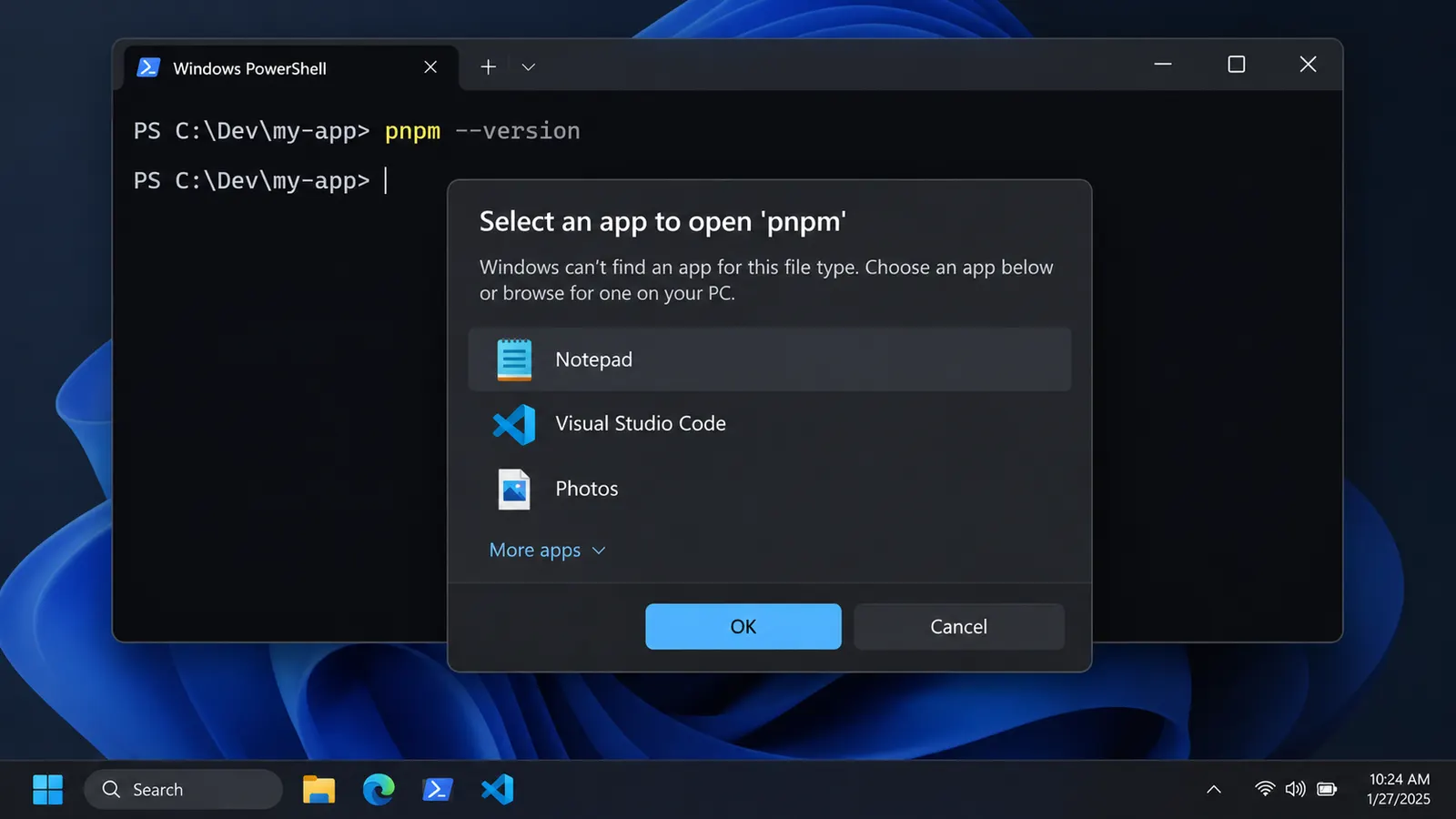
You install Node.js, configure pnpm, and open a terminal to check whether everything works.
pnpm --versionNormally, this should print a version number.
Instead, Windows opens a dialog asking you to select an application.
It is a rather strange result. You wanted to execute a package manager, yet Windows behaves as though you have opened a document whose format it cannot recognize.
Perhaps pnpm was installed incorrectly? Or maybe Windows does not know how to execute it?
Both are possibilities, but there is something else worth considering. The file Windows is trying to open might not be the launcher that should have been executed in the first place.
On Windows, a command such as pnpm can correspond to several different files. Some are designed for PowerShell, others for Command Prompt, and certain files are intended for Unix-like shells.
They may share the same name while behaving quite differently.
Before changing file associations or reinstalling Node.js, we need to determine which file is actually being used.
What happens when Windows receives a command?
When we enter:
pnpm installPowerShell needs to resolve the name pnpm to something it can execute.
It does not simply search for a file named pnpm and run the first match without considering anything else.
PowerShell has its own command-resolution rules. Aliases, functions, cmdlets, scripts, and native applications can all be involved.
When resolving external commands, it searches directories available through the PATH environment variable. On Windows, executable file extensions also matter.
This is one reason commands can work without their extensions being written explicitly.
For example:
node --versionUsually resolves to node.exe.
Likewise, pnpm may resolve to a script or executable launcher installed by npm, Corepack, or another installation method.
But what if the system attempts to open a file rather than execute a suitable launcher?
Windows also has a separate mechanism for opening files through their associated applications.
Double-clicking a .txt file, for instance, normally opens a text editor. The file itself is not an executable program.
When Windows cannot determine which application should handle a file, it may display the familiar Select an app to open this file dialog.
That distinction is useful for understanding the pnpm problem.
A normal terminal invocation should execute a valid command. An application-selection dialog suggests that somewhere in the launch process, Windows is being asked to open a file through its association mechanism.
However, the dialog alone does not tell us which file caused it. We should inspect the command resolution before drawing a conclusion.
Why are there several files named pnpm?
Open the directory where pnpm was installed.
Depending on the installation method, you may find files resembling these:
pnpm
pnpm.cmd
pnpm.ps1
There may also be an executable named pnpm.exe, particularly with certain standalone installations.
At first glance, having several files with nearly identical names seems unnecessary.
But these files serve different environments.
pnpm.cmd
A .cmd file is a Windows command script.
It can be executed by Command Prompt and can also be invoked from PowerShell.
For example:
pnpm.cmd --versionWhen pnpm is installed through npm, the .cmd launcher commonly invokes Node.js with the appropriate pnpm entry point.
The user does not usually need to know where the JavaScript implementation is located.
The launcher handles that part.
pnpm.ps1
A .ps1 file is a PowerShell script.
When pnpm is installed using methods that generate PowerShell shims, this file provides an entry point specifically for PowerShell.
It serves a similar purpose to pnpm.cmd, but it follows PowerShell’s scripting rules.
That includes PowerShell’s execution policy.
Consequently, a working pnpm.cmd does not necessarily mean that pnpm.ps1 will execute successfully.
The extensionless pnpm file
You may also encounter a file simply named:
pnpmSuch files are commonly used as launchers in Unix-like environments, including shells such as Bash.
Windows does not automatically interpret every extensionless file as a native executable.
If this file is opened through a mechanism that depends on Windows file associations, the system may not know which application should handle it.
The result can be an application-selection dialog.
This does not mean that every extensionless pnpm file is broken or unnecessary. It may be perfectly valid for the environment it was created for.
The problem appears when the wrong file is used by the wrong execution mechanism.
Find out which pnpm PowerShell is actually using
Rather than guessing where pnpm was installed, we can ask PowerShell directly.
Open a fresh PowerShell terminal and enter:
Get-Command pnpmIf the command can be resolved, PowerShell returns information about it.
But this is only the first result.
What if there are several installations?
For example, pnpm might have been installed through npm and later configured through Corepack. Both methods can create launchers.
To see all matching commands, run:
Get-Command pnpm -All |
    Format-Table CommandType, Name, Source, Definition -AutoSize
The output will depend on the machine.
You might discover that PowerShell can see a PowerShell script, a command script, or multiple launchers in different directories.
Pay attention to their locations.
A path under:
C:\Program Files\nodejs\may be associated with the Node.js installation or Corepack.
A path resembling:
C:\Users\<username>\AppData\Roaming\npm\is commonly associated with npm’s global installation directory.
A separate pnpm installation may use another directory configured through PNPM_HOME.
The presence of several locations is not automatically an error.
But it raises an obvious question: which installation is Windows actually using?
PowerShell’s Get-Command -All returns matching commands according to its command-discovery rules, making it useful for identifying the launcher that takes precedence.
We can also ask Windows to locate matching files:
where.exe pnpm.*This searches for matching filenames in directories available through PATH.
Notice that we explicitly used where.exe.
In PowerShell, where is also an alias for Where-Object, so including the extension avoids confusion.
The two diagnostic commands are not identical. Get-Command understands PowerShell command types, while where.exe searches the filesystem.
Using both can reveal inconsistencies that would otherwise be difficult to notice.
Try pnpm.cmd directly
Suppose PowerShell normally opens the application-selection dialog when you invoke pnpm.
Instead of repeating the same command, try specifying the launcher:
pnpm.cmd --versionThere are several possible outcomes.
If a version number appears, the .cmd launcher works.
This tells us that pnpm itself can execute through that entry point.
It does not establish exactly why the original command opened a dialog, but it narrows the investigation considerably.
The problem may involve command resolution, an unexpected file being selected, or the way pnpm was launched.
If PowerShell reports that pnpm.cmd cannot be found, examine the files returned by the earlier commands.
Perhaps the .cmd launcher is missing, or its directory is not available through PATH.
If pnpm.cmd is found but produces a Node.js error, the launcher may exist while its referenced package files are missing.
That is another distinct failure.
For example, an old launcher might point to a pnpm installation directory that no longer exists.
Reinstalling a completely unrelated part of Node.js would not explain why that outdated launcher remains on PATH.
Running a launcher using its complete path
If you know where pnpm.cmd is located, PowerShell can invoke it directly.
For example:
& "C:\Users\<username>\AppData\Roaming\npm\pnpm.cmd" --versionReplace the example path with the actual location on your computer.
The & character is PowerShell’s call operator. It allows a command to be executed from a path supplied as a string.
This is useful when a directory contains spaces or when we deliberately want to avoid relying on command-name resolution.
If the full path works while the short command does not, the difference deserves attention.
It suggests that the executable itself may be usable, while its discovery through the current environment is not working as expected.
What if pnpm.ps1 is blocked?
Now consider another common Windows problem.
You enter:
pnpm --versionBut instead of opening a dialog, PowerShell displays an error resembling:
pnpm.ps1 cannot be loaded because running scripts
is disabled on this system.
This is not the same problem.
PowerShell has successfully found a script. It simply refuses to execute it under the current execution policy.
The important detail is the filename:
pnpm.ps1Unlike .cmd files, PowerShell scripts are subject to execution-policy rules.
On Windows, these policies can restrict which scripts are allowed to run.
We can inspect the current configuration with:
Get-ExecutionPolicy -ListThe command displays execution policies configured at different scopes.
For example, you may see values such as Restricted, RemoteSigned, or Undefined.
A policy that prevents scripts from running can block the PowerShell launcher even if pnpm was installed correctly.
But before modifying any security settings, remember that we may already have another launcher available.
Try:
pnpm.cmd --versionIf this works, you can use the .cmd launcher without changing PowerShell’s script execution policy.
For someone who only needs pnpm to install packages or run development scripts, that may be sufficient.
There is also the possibility of adjusting the execution policy for the current user, where permitted.
Microsoft documents the following command:
Set-ExecutionPolicy -Scope CurrentUser RemoteSignedThis allows locally created scripts to run while maintaining restrictions on unsigned scripts downloaded from the internet.
However, execution policies may be controlled by an organization, and changing them should not be the automatic response to every pnpm error.
More importantly, changing the execution policy is not a reliable fix for the Select an app dialog.
That dialog and a PowerShell script execution error involve different mechanisms.
If Windows is trying to open an extensionless file through file associations, allowing PowerShell scripts will not necessarily change anything.
Why opening pnpm from Explorer can produce a different result
There is another detail that can make this issue confusing.
Running a command from a terminal and opening a file from File Explorer are different operations.
Suppose you navigate to a directory containing these files:
pnpm
pnpm.cmd
pnpm.ps1
If you double-click the extensionless pnpm file, Windows may attempt to open it as a document.
Without a suitable file association, it can ask which application should be used.
Yet executing pnpm.cmd from a terminal may work normally.
Nothing contradictory has happened.
The same directory contains files intended for different execution environments.
The distinction also matters when working with PowerShell commands such as:
Invoke-ItemOr:
Start-ProcessThese commands do not behave exactly like typing a command directly into PowerShell.
For instance, Invoke-Item invokes the default action associated with a filesystem item. That action may involve opening the item through Windows file associations.
If an application or script is passing an extensionless pnpm launcher to such an operation, Windows may treat it as a file that needs an associated application.
In that situation, the problem may be in the method used to launch pnpm rather than in pnpm itself.
For command-line tools, direct invocation through the appropriate executable or script is generally clearer.
Could PATH be pointing to the wrong installation?
It is possible to have a working pnpm installation and still execute an outdated launcher.
This often happens after installing the same tool through different methods.
Imagine the following sequence.
First, pnpm is installed globally with npm.
Later, Corepack is enabled.
At some point, Node.js is upgraded, moved, or reinstalled.
The system may now contain launchers from more than one installation.
Which one runs when you type pnpm?
That depends on command resolution and the directories available through PATH, among other factors.
To inspect the current PATH, use:
$env:Path -split ';'PowerShell will display its entries on separate lines.
You may recognize the Node.js installation directory, npm’s global directory, or a directory configured for pnpm.
The order of these entries matters when different directories contain matching executable commands.
However, PATH is not the only factor in PowerShell’s command resolution. Aliases, functions, and script types can also affect which command is selected.
That is why Get-Command pnpm -All is more informative than simply examining PATH.
Another useful check is:
Get-Alias pnpm -ErrorAction SilentlyContinueNormally, there is no reason for a PowerShell alias named pnpm to be present.
If one exists, it may be redirecting the command somewhere unexpected.
Before removing anything, find out why the alias or launcher exists.
Deleting every file named pnpm from the computer is not a sensible repair strategy.
It could remove working components while leaving the actual command-resolution problem unchanged.
Where Corepack enters the picture
So far, we have treated pnpm as a command with several possible launchers.
But there is another component that may be responsible for providing those launchers: Corepack.
Corepack is a tool designed to manage package-manager versions for Node.js projects.
It acts as an intermediary between the command entered by the user and the package-manager version expected by the project.
This becomes useful when different projects require different versions of pnpm.
Consider a project containing:
{
  "name": "example-project",
  "private": true,
  "packageManager": "[email protected]"
}
The packageManager field declares which package manager and version the project expects.
With Corepack configured correctly, invoking pnpm from that project can cause Corepack to select the appropriate version.
Without such a mechanism, developers might need to manage different globally installed pnpm versions manually.
How Corepack exposes pnpm
Corepack can create command shims that make package managers available through familiar commands.
For example:
corepack enableEnables the supported package-manager shims.
These shims allow commands such as pnpm to be routed through Corepack rather than directly through a separately installed global pnpm package.
But this introduces another possible source of confusion.
If a machine already contains npm-generated pnpm launchers, enabling Corepack may leave multiple possible command locations.
The outcome depends on the installation paths and whether any files conflict.
This does not mean Corepack is inherently responsible for the application-selection dialog.
It means that Corepack is another component worth identifying when several pnpm launchers exist.
Check Corepack separately
Run:
corepack --versionIf Corepack is available, the command should return its version.
Next, try:
corepack pnpm --versionThis invokes pnpm through Corepack directly, without depending on a separately named pnpm shim being selected first.
If Corepack successfully starts pnpm while the ordinary pnpm command fails, the comparison suggests that the problem lies somewhere in the ordinary command’s launcher or resolution path.
However, corepack pnpm can fail for reasons unrelated to Windows file associations, including package-manager download problems or version compatibility.
The exact error should still be examined.
Corepack is not included with every Node.js installation
Another detail is the Node.js version.
Corepack was distributed with Node.js releases beginning with Node.js 14.19.0 and continuing through Node.js 24.
Starting with Node.js 25, Corepack is no longer bundled with Node.js.
Therefore, installing a newer Node.js version does not necessarily provide a corepack command automatically.
If Corepack is missing and you intend to use it, the official project documents installation through npm:
npm install -g corepackThen:
corepack enableBut do not install Corepack merely because pnpm displays an application-selection dialog.
First, determine how pnpm was originally installed.
If you deliberately use a global pnpm installation managed by npm, Corepack is not required for that setup.
Running several installation methods without understanding their existing launchers may complicate the diagnosis rather than solve it.
When Corepack itself is outdated
There is a separate compatibility issue that can appear after upgrading pnpm.
During the transition to pnpm 11, its package entry point changed from a CommonJS file to an ECMAScript module.
Older Corepack releases contained assumptions about the location of pnpm’s executable entry point.
As a result, certain Corepack versions could fail to launch pnpm 11 correctly.
This issue was reported in Corepack’s GitHub repository and subsequently addressed.
It is worth mentioning because the symptoms may initially suggest another broken pnpm installation.
However, this particular problem does not normally explain why Windows opens Select an app.
It is more likely to produce an execution or module-resolution error after Corepack has already started.
If the ordinary pnpm command works with an older project but fails after changing the project’s pinned version, checking Corepack compatibility becomes relevant.
The important distinction remains the same: identify the component that actually fails before modifying the installation.
What if pnpm.cmd does not exist?
Suppose you have checked the available commands and cannot find pnpm.cmd.
PowerShell may report:
The term 'pnpm.cmd' is not recognized...Perhaps corepack pnpm --version works, or maybe no pnpm command works at all.
At this stage, reinstalling or regenerating the launchers may be appropriate.
But the installation method matters.
pnpm installed through npm
If pnpm was installed globally with npm, a conventional installation command is:
npm install -g pnpmFor a project that requires a specific version, use the required version instead of installing whichever release happens to be latest.
For example:
npm install -g [email protected]npm normally creates the necessary Windows command shims as part of a global package installation.
After installation, close the terminal and open a new session.
Then check:
Get-Command pnpm -AllAnd:
pnpm.cmd --versionIf an outdated launcher from another installation is still found first, reinstalling the package may not be enough.
That is why inspecting the paths before and after installation is useful.
pnpm managed through Corepack
If the project relies on Corepack, first make sure Corepack itself is installed and functioning.
Then the documented command:
corepack enableCan be used to enable its package-manager shims.
Be aware that Corepack may need permission to create files in the Node.js installation directory.
On systems where Node.js is installed under a protected directory, permission errors can prevent shim creation.
A failed corepack enable should not be treated as proof that pnpm itself is broken.
Also avoid blindly combining a global npm installation of pnpm with a Corepack-managed setup.
Both approaches are valid, but the resulting launchers should be understood rather than repeatedly overwritten.
A quick diagnostic sequence
If Windows opens the application-selection dialog when attempting to use pnpm, begin with a fresh PowerShell session.
First, check which command PowerShell resolves:
Get-Command pnpm -All |
    Format-Table CommandType, Name, Definition -AutoSize
Then examine the matching files:
where.exe pnpm.*Try the Windows command launcher:
pnpm.cmd --versionIf it works, the package manager can execute through that launcher.
Now compare it with:
pnpm --versionIf only the second invocation produces unexpected behavior, look more closely at command resolution and how the command is being launched.
If the error mentions pnpm.ps1 being blocked, inspect the execution policy:
Get-ExecutionPolicy -ListIf pnpm.cmd is missing but Corepack is available, compare the result with:
corepack pnpm --versionThese commands do not repair anything by themselves.
That is precisely why they are useful.
They allow us to distinguish a missing executable, a blocked PowerShell script, a conflicting launcher, and a problem involving Corepack.
Why changing the default application is usually the wrong fix
When Windows asks which application should open pnpm, it is tempting to select PowerShell or Command Prompt and make that choice permanent.
After all, pnpm is a command-line tool. Would associating its file with a terminal not solve the problem?
Not necessarily.
A command-line launcher and a document opened through a file association are not equivalent.
Selecting a terminal application as the default handler for an extensionless file does not guarantee that the file will be interpreted using the correct arguments, environment, or scripting language.
It may even affect how Windows opens other files of the same type.
The better approach is to determine why that particular file is being opened at all.
Perhaps an application is trying to open the extensionless launcher through Windows Shell rather than executing pnpm.cmd.
Perhaps a stale installation left an unexpected file in a directory searched before the correct launcher.
Or perhaps the command works perfectly in PowerShell, and the dialog appears only when someone double-clicks a file in Explorer.
Those situations require different corrections.
Changing Windows file associations without identifying the cause risks hiding the original issue instead of resolving it.
The command name is only part of the story
It is easy to think of pnpm as a single executable.
From the user’s perspective, that is understandable. The same command installs dependencies, runs scripts, and manages packages regardless of which project is open.
But Windows may reach that functionality through several layers.
PowerShell resolves the command name. A launcher may start Node.js. Corepack may select a package-manager version. Finally, pnpm itself receives the arguments.
An error at any of these stages can prevent the expected command from running.
And because the visible command is always pnpm, different failures can initially appear related.
A Select an app dialog points toward an attempt to open a file through Windows’ file-handling mechanism, although the exact launch path still needs to be identified.
A pnpm.ps1 execution-policy error tells us that PowerShell found a script but refused to execute it.
A missing-command error suggests that the shell could not resolve the requested command.
A Corepack module error occurs further along the execution chain.
The distinction may seem small, but it changes which solution is appropriate.
Sometimes the entire problem can be bypassed by invoking:
pnpm.cmd --versionOther times, the correct launcher is missing or an old installation is taking precedence.
The useful question is therefore not simply whether pnpm is installed.
It is which file Windows is trying to execute, how that file was selected, and whether it belongs to the installation you actually intend to use.