Windows
WinGet Not Recognized Even Though App Installer Is Installed
WinGet can disappear from PowerShell even when Windows reports that App Installer is installed. The problem may involve package registration, execution aliases, or PATH rather than a missing installation.
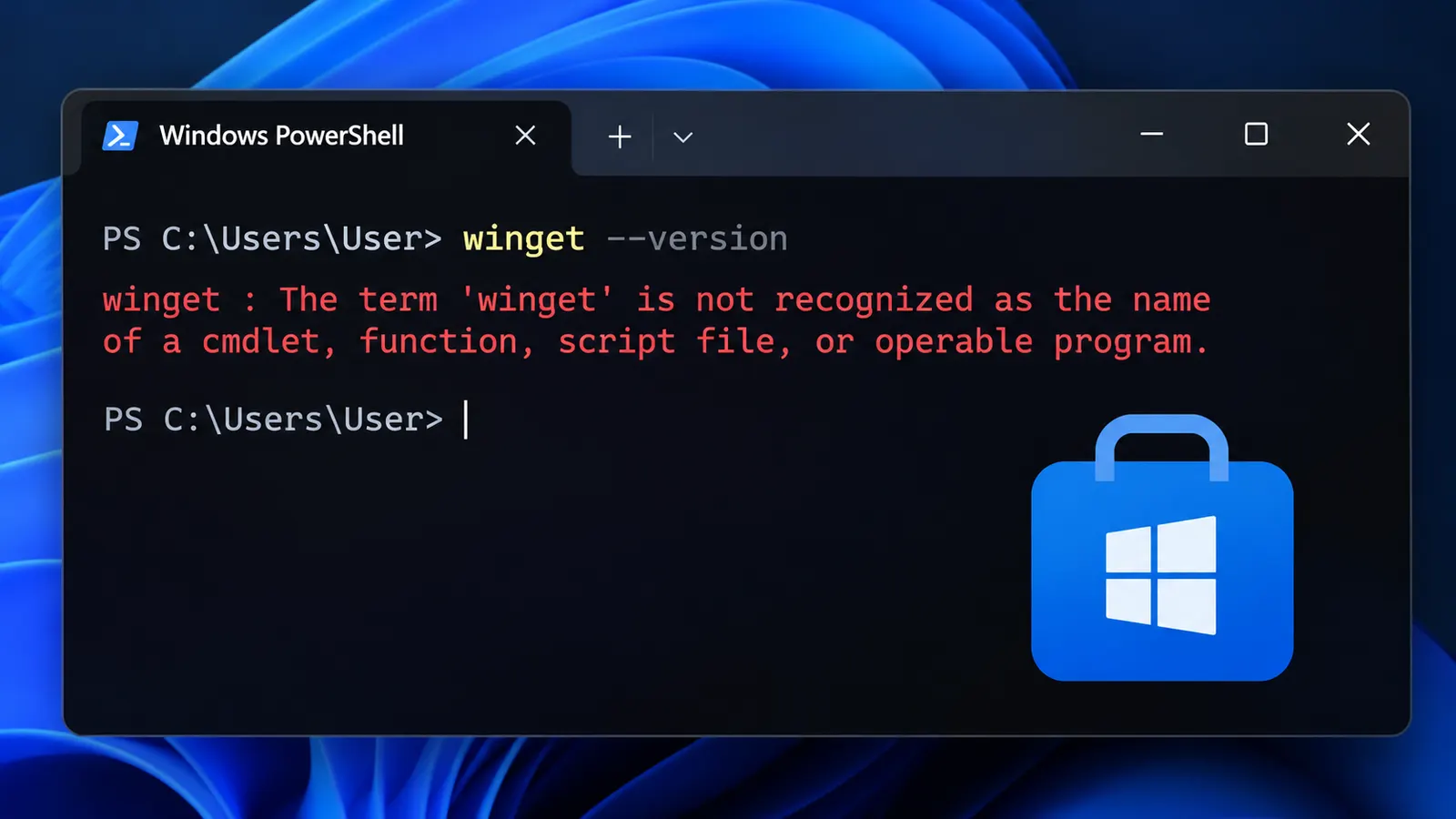
You open PowerShell, enter a command that should work on Windows 11, and receive an error instead.
winget --versionwinget : The term 'winget' is not recognized as the name
of a cmdlet, function, script file, or operable program.Perhaps WinGet was working previously. Or maybe you have just installed Windows and are attempting to use its package manager for the first time.
The obvious explanation would be that WinGet is missing.
Yet when you open Windows Settings and search for App Installer, the application is already there. Microsoft Store may even report that it is installed and up to date.
So why does Windows recognize the application but not its command?
The answer depends on something that is easy to overlook: having App Installer installed does not necessarily mean that winget.exe is available to your current terminal session.
There are several steps between installing a Windows application package and being able to execute its command by name. If one of them fails, the result can look exactly like a missing installation.
Before reinstalling anything, it is worth finding out which step is responsible.
App Installer and WinGet are connected, but not identical
WinGet is the command-line interface for Windows Package Manager. It allows users to install, update, search for, and remove applications without manually visiting each application’s website.
On supported Windows versions, WinGet is distributed as part of Microsoft’s App Installer package.
The package is registered under the name:
Microsoft.DesktopAppInstallerThis is why searching for a separate WinGet application in Windows Settings can be confusing. The component providing the command is associated with App Installer.
However, installing the package is only part of the process.
Windows must also register the application for the relevant user account. Its execution alias needs to be available, and the terminal must be able to locate that alias.
An outdated App Installer version can introduce another complication, particularly on older Windows installations.
Consequently, the presence of App Installer in the installed applications list does not settle the question of whether WinGet is correctly configured.
We can examine these possibilities without changing the system.
First, check whether Windows recognizes the package
Open PowerShell under the Windows account where WinGet is failing.
There is no need to run it as administrator for this initial check.
Enter:
Get-AppxPackage Microsoft.DesktopAppInstallerIf App Installer is registered for the current account, PowerShell should return information about the package.
The output includes properties such as its name, version, installation location, and package family name.
For a more compact result, use:
Get-AppxPackage Microsoft.DesktopAppInstaller |
    Select-Object Name, Version, Status
Now consider the result.
If PowerShell returns the package information, we know that Windows can identify an App Installer registration for the current user.
That does not prove the WinGet executable works, but it gives us somewhere to begin.
If the command returns nothing, the situation is different.
App Installer may be absent, not registered for this user, or otherwise unavailable in the current account’s package context.
It is possible for an application package to be present on a machine without being registered for every user.
This distinction matters especially on computers with several accounts, newly created profiles, or installations managed by an organization.
Before proceeding, also check the Windows version.
Press Win + R, enter:
winverMicrosoft supports WinGet on Windows 11 and Windows 10 version 1809 (build 17763) or later.
If the operating system is older than that, the missing command cannot be explained by PATH or an execution alias alone.
Check the App Installer version
PowerShell can display the installed version directly:
(Get-AppxPackage Microsoft.DesktopAppInstaller).VersionIf the package exists, the command returns its version number.
An unusually old App Installer release may not contain a usable WinGet client. This is a separate possibility from a broken alias or missing PATH entry.
Microsoft’s WinGet troubleshooting documentation explicitly identifies outdated App Installer packages as a possible cause of the command being unavailable.
For now, note the version and continue checking. We do not yet know whether an update is necessary.
Does PowerShell know where winget.exe is?
The next question concerns the command itself.
Even when an application is installed, PowerShell needs a way to locate its executable.
Run:
Get-Command winget -ErrorAction SilentlyContinueIf PowerShell finds the command, it should display information about the resolved executable or command.
You can also check from the Windows executable search path:
where.exe wingetNotice the .exe extension on where.exe.
In PowerShell, where is also an alias for Where-Object, so explicitly invoking where.exe avoids confusion.
On a typical installation, WinGet can be exposed through a path resembling:
C:\Users\<username>\AppData\Local\Microsoft\WindowsApps\winget.exeThe exact username and configuration will differ.
What interests us is the Microsoft\WindowsApps directory.
Windows uses this location for app execution aliases, allowing certain packaged applications to be launched from the command line without requiring users to navigate to their installation directories.
If Get-Command and where.exe cannot find WinGet, we have narrowed the problem.
Either the execution alias is unavailable, the relevant directory is not included in PATH, or the package has not been registered correctly.
But if PowerShell does find winget.exe and the executable still refuses to run, the problem is not simply that Windows cannot locate the command.
That is an important difference. It prevents us from wasting time modifying PATH when the executable is already being resolved.
A newly created Windows account may need package registration
Microsoft documents a situation in which WinGet is not immediately available after a user signs in to Windows for the first time.
The Microsoft Store registration process can occur asynchronously.
In other words, the operating system may have the necessary package, but the user-specific registration has not yet completed.
This can explain an apparently inconsistent situation: App Installer exists, yet PowerShell cannot execute winget.
Microsoft provides a command to request the registration manually.
Open PowerShell under the affected user account and enter:
Add-AppxPackage -RegisterByFamilyName -MainPackage Microsoft.DesktopAppInstaller_8wekyb3d8bbweThe long identifier is the App Installer package family name.
The command is not downloading a random executable or replacing Windows system files. It asks Windows to register the specified application package for the user.
Once it finishes, close PowerShell and open a new terminal session.
Then try:
winget --versionIf the command now returns a version number, the registration was likely the missing step.
If nothing changes, consider signing out and signing back in before continuing.
There is one detail worth remembering.
Package registration is associated with Windows user accounts. If you open PowerShell using another administrator account, you may end up examining or registering the package for that account rather than the account where WinGet originally failed.
For this reason, perform the registration under the affected user’s identity.
The package exists, but its execution alias is disabled
Suppose App Installer is registered, its version appears reasonable, and WinGet is still not recognized.
At this point, checking the app execution alias makes sense.
Windows provides a settings page where aliases for supported applications can be enabled or disabled.
On Windows 11, the relevant setting is generally found under:
Settings → Apps → Advanced app settings → App execution aliases
You can also search Windows Settings for App execution aliases.
On Windows 10, the option is available through the Apps settings area, although the exact navigation may differ between versions.
Find the entry associated with Windows Package Manager or winget.exe.
If it is disabled, enable it.
If it is already enabled, Microsoft’s WinGet troubleshooting guide suggests toggling the alias off and on again.
After making the change, open a new terminal and run:
winget --versionWhy would toggling a setting help?
Because the execution alias is part of how Windows exposes a packaged application’s executable to the command line.
A package can remain installed while its alias is disabled or unavailable.
This is also why manually searching through C:\Program Files\WindowsApps is not the first thing to do. That directory contains packaged application installations, but accessing or modifying it directly is unnecessary for this diagnosis.
There is no reason to change ownership or permissions of protected Windows directories merely because an execution alias is missing.
The less obvious possibility: PATH
Now consider a slightly different result.
PowerShell cannot find winget, but the package is registered and the app execution alias appears enabled.
Could Windows know about the executable without being able to locate it by name?
Yes.
When you type a command without specifying its complete location, the terminal uses command-resolution rules that include searching directories listed in the PATH environment variable.
If the WindowsApps directory is missing from PATH, entering winget may fail even though the alias itself exists.
We can check this directly.
Run:
& "$env:LOCALAPPDATA\Microsoft\WindowsApps\winget.exe" --versionThis command attempts to execute WinGet using its expected alias path rather than relying on PATH to find it.
Two outcomes are particularly useful.
If the command works and displays a WinGet version, but typing winget --version still produces a command-not-found error, the missing PATH entry becomes a strong possibility.
If the direct command also fails, there is likely another problem involving the alias, registration, or package itself.
Do not immediately add new directories to PATH in the second case. It would not necessarily address the cause.
Checking PATH in PowerShell
Enter:
$env:Path -split ';'PowerShell will display the directories included in the current session’s PATH, one per line.
Look for an entry corresponding to:
C:\Users\<username>\AppData\Local\Microsoft\WindowsAppsIt may also appear in environment-variable form, such as:
%USERPROFILE%\AppData\Local\Microsoft\WindowsAppsIf the entry is absent, the system may not know where to find the WinGet execution alias.
Microsoft’s troubleshooting guide identifies this directory as the expected PATH component.
To restore it, open Windows’ environment variable settings.
One way is to press Win + R and enter:
rundll32.exe sysdm.cpl,EditEnvironmentVariablesIn the user environment variables section, inspect the Path variable.
If the WindowsApps entry is missing, add the current user’s WindowsApps directory.
Use the appropriate path for your account rather than copying a path containing someone else’s username.
After saving the changes, close the terminal and launch a new one.
Then check:
winget --versionAvoid replacing the entire PATH value or using a command that blindly appends another copy of an existing directory.
PATH often contains entries required by development tools, Windows utilities, and installed applications. Overwriting it while fixing WinGet can create additional problems.
When App Installer itself needs attention
Suppose the package is registered, its alias is enabled, and PATH appears correct.
WinGet is still unavailable.
At this point, the App Installer installation deserves closer examination.
First, open Microsoft Store and locate App Installer.
Check whether an update is available.
Microsoft distributes WinGet through App Installer, and an outdated version can be responsible for the missing command.
If an update is offered, install it, restart the terminal, and check WinGet again.
For installations where Microsoft Store is unavailable, Microsoft provides an official App Installer download through its documentation.
Avoid downloading modified copies of winget.exe from unrelated websites.
Repairing App Installer
Windows also supports repairing certain packaged applications without immediately resetting their stored data.
Open Windows Settings, locate App Installer in the installed applications list, and open its advanced options if they are available.
Select Repair.
This asks Windows to attempt to repair the application while retaining its data.
Once the operation finishes, try opening a new terminal and running WinGet.
If Repair does not solve the problem, a Reset option may also be available.
Reset is more disruptive. Microsoft states that resetting an MSIX application removes its application data and restores it to a fresh state.
For that reason, Reset should come after the less invasive checks, not before them.
Microsoft’s WinGet repository also documents package-reset and re-registration approaches for specific Windows versions.
A reset may help when the package is damaged, but it cannot correct every problem. For example, if PATH is missing the WindowsApps directory, resetting the application may leave the original cause untouched.
Why it works in one terminal but not another
There is another situation worth examining.
Imagine that WinGet works in a normal PowerShell window but fails inside an integrated terminal or a terminal launched under another account.
Would this mean App Installer is broken?
Not necessarily.
First, consider when the terminal was opened.
Applications inherit environment information when their processes start. If PATH was modified after Visual Studio Code or another terminal application was launched, an already-running process may still be using the previous environment.
Opening another tab inside the same application may not be sufficient if its parent process still holds the old PATH.
Closing the terminal application completely and starting it again is a reasonable first check.
Now consider the user account.
App Installer registration is user-specific. If the application is available to one account but not another, both accounts may report different results when running:
Get-AppxPackage Microsoft.DesktopAppInstallerA terminal launched using a separate administrator identity may therefore behave differently from one running under the normal user’s identity.
Finally, check which shell is being used.
PowerShell, Command Prompt, Git Bash, and Linux shells running under WSL do not all resolve commands in exactly the same way.
A command working in Windows PowerShell does not establish that the same command will be available unchanged inside a Linux environment.
Before altering Windows settings, compare the behavior in a fresh PowerShell window under the intended user account.
That provides a useful reference point.
What if this is Windows Sandbox or a managed computer?
The same error message can appear in environments where WinGet is genuinely absent.
Windows Sandbox is one example.
Microsoft notes that Windows Sandbox does not include WinGet or Microsoft Store by default.
The appropriate solution there is not simply to toggle an execution alias that does not exist.
Microsoft documents separate installation methods, including obtaining the WinGet package from its official GitHub releases or using the Microsoft.WinGet.Client PowerShell module.
On an organization-managed computer, the situation may be different again.
The device could have restrictions affecting Microsoft Store updates, application deployment, or package registration.
If App Installer is managed through company policies, changing its installation manually may conflict with the intended configuration.
In such cases, checking the package state and contacting the device administrator is preferable to bypassing the restrictions.
A failed command does not always mean a missing command
So far, we have concentrated on situations where PowerShell cannot recognize winget.
But there is another type of failure that looks similar at first.
Suppose this command:
Get-Command wingetsuccessfully locates the executable.
Then:
winget --versionfails with an execution error rather than a command-not-found message.
The distinction tells us something.
Windows has found an executable or alias, but something is preventing it from running correctly.
This shifts the investigation away from ordinary PATH resolution and toward the application’s registration, package state, or runtime behavior.
Microsoft’s troubleshooting documentation lists several failure modes separately, including cases where winget.exe is found but cannot be accessed by the system.
Treating all of these errors as identical can lead to unnecessary changes.
The exact wording of the error matters.
Finding the actual cause
A missing WinGet command can originate from several different places, yet the visible symptom is often the same.
That is what makes the problem confusing.
An installed application suggests that its executable should already be available. But Windows package registration, execution aliases, and PATH introduce additional conditions.
The quickest diagnosis is usually to establish what Windows can already see.
Start with:
Get-AppxPackage Microsoft.DesktopAppInstallerIf the package is registered, check whether PowerShell can locate the command:
Get-Command winget -ErrorAction SilentlyContinueIf the alias appears to exist but the command cannot be found, compare it with a direct invocation:
& "$env:LOCALAPPDATA\Microsoft\WindowsApps\winget.exe" --versionThese checks separate several problems that would otherwise look identical.
A missing package requires a different solution from a disabled alias. An unregistered user account requires a different solution from a missing PATH entry. And an executable that Windows can locate but cannot run should not be treated as though the executable does not exist.
Once the difference is established, the appropriate fix becomes much clearer.
There is little reason to reinstall App Installer repeatedly when the actual problem is a disabled execution alias or an outdated terminal environment.